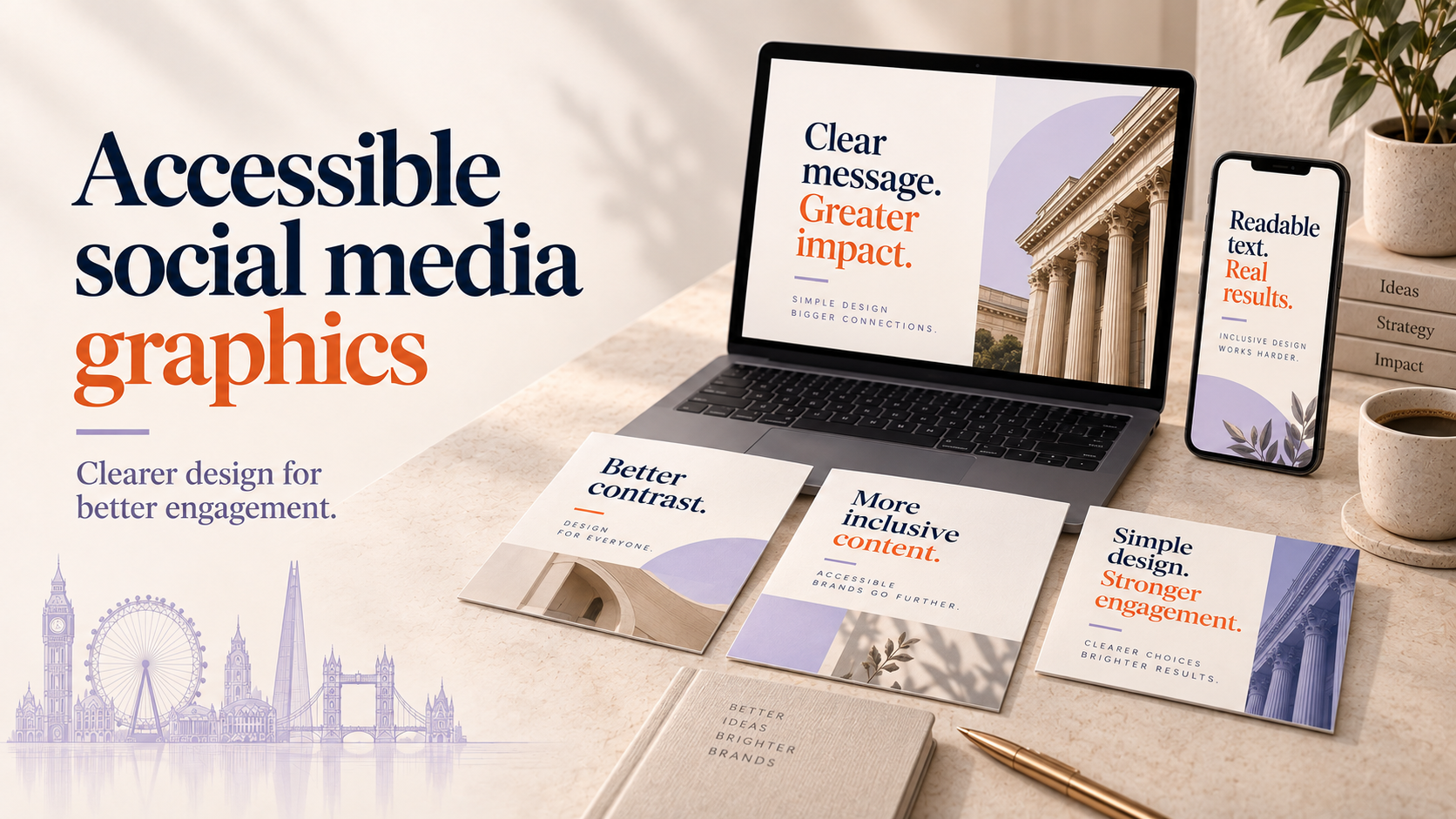
Accessible social media graphics uk should be part of every small business’s social strategy. They increase reach, improve customer experience and reduce reputational risk. This guide gives practical checks, ready-to-use alt-text examples, template guidance, platform-specific tips and a short checklist you can apply today.
Why accessible social media graphics uk matter for small businesses
Who benefits and how accessibility supports business goals
Accessible graphics help people with visual, cognitive or hearing impairments, and they also improve usability for everyone — customers in bright sunlight, older users and those using small screens. Making posts readable and describable increases engagement, widens your potential audience and reflects well on your brand.
High-level UK context and why simple steps reduce legal and reputational risk
UK businesses are expected to avoid discrimination under the Equality Act 2010 and to make reasonable adjustments. While social media platforms are not covered in the same way as a physical premises, accessible communications reduce the risk of complaints and protect your reputation. For legal advice on specific obligations seek professional guidance.
Quick accessibility checklist for social media graphics
Use this checklist each time you prepare a post.
- Colour contrast and text legibility: Ensure clear contrast between text and background (see contrast checks below).
- Alt text and image descriptions: Add concise alt text and extended descriptions for complex images.
- Captions and transcripts: Add captions to videos and transcripts for audio where possible.
- Text size and fonts: Use readable font sizes and avoid narrow or decorative fonts for body text.
- Avoid problematic visuals: No flashing effects; avoid low-contrast overlays over photos.
- File formats and naming: Use common formats (JPEG, PNG, MP4) and give files descriptive names for internal workflows.
Colour contrast and text legibility — minimum checks
For most body text aim for good contrast and clear hierarchy. Contrast tools (listed below) will show whether foreground and background meet recommended ratios.
Alternative text and image description — what to include
Alt text should describe the essential content and purpose of the image. If the image contains text, include that text in the alt text or caption.
Captions and transcripts for video and audio
Always add captions for spoken content. Provide a short transcript when audio conveys essential information beyond the visuals.
Text size, fonts and hierarchy for readability
Use clear headings, strong visual hierarchy and avoid placing large blocks of text inside images where possible. If text must be in the image, keep it short and high-contrast.
Avoiding problematic visuals (flashing, low contrast overlays)
Do not use flashing animations. Avoid placing text over busy photos without a high-contrast solid or semi-opaque backing.
File formats, image compression and naming
Export images at web-friendly sizes to balance quality and file size. Name files descriptively for organisation (eg “team-open-day-2026.jpg”).
How to write alt text and image descriptions for posts (practical examples)
Short alt text for feed images — examples
- Product photo: “Ceramic coffee cup, matt navy, on wooden table; £12”
- Team photo: “Four-member bakery team outside shop, smiling; painted blue door behind”
Extended descriptions for infographics and detailed images
For infographics include a concise alt text such as “Infographic: five steps to prepare your taxes” and then add an extended description in the caption or linked document that explains each step in order.
Using threads or captions for long descriptions (when to use each)
If a platform limits alt-text length, put a short alt text in the image field and paste a longer description in the post caption or a comment. For complex visuals consider linking to a page on your website with the full description.
Templates: 3 alt-text patterns small businesses can reuse
- Object/photo: “[object], [colour/condition], [context/location]” — e.g. “Oak dining table, natural finish, in showroom corner”.
- People/team: “[Number of people] [group type] [action], [location]” — e.g. “Two gardeners planting, community park”.
- Infographic: “Infographic: [title]; key points: [short list or note to read caption]”.
Designing accessible templates and brand assets
Choosing accessible brand colours and testing contrast
Pick primary and secondary palette options with sufficient contrast between text and background. Keep an accessible alternate for social use if your brand palette has low-contrast combinations.
If you need redesign support for logos or colour systems, consider commissioning custom logo design or a wider brand identity design to provide accessible variations.
Creating reusable, labelled templates in Canva/Photoshop
Build templates with clear layers and labelled elements: background, image, headline, subhead. Include an accessibility note inside the template to remind the user to add alt text and captions.
Logo placement, overlays and ensuring legibility
Keep logos away from small corners where they overlap busy imagery. Provide a simplified monochrome logo for use on low-contrast backgrounds.
When to create a plain-text version or alternate post
If a graphic is dense with information, publish a plain-text version of the same content in the post caption or as an attached document to ensure all users can access the information.
Platform-specific tips for UK social channels
Instagram: alt text field, captions and image carousels
Use Instagram’s alt text field when uploading; add extended descriptions in the caption or a follow-up comment for carousels. For text-heavy slides, also include the text in the caption.
Facebook: checking alt text and accessibility settings
Facebook auto-generates alt text but it can be generic. Manually edit the alt text when accuracy matters. Add captions to native video uploads.
X (Twitter): adding image descriptions and using threads
X supports manual image descriptions; enable the image description option in settings if needed. For long descriptions consider a thread where the first tweet contains a short alt text and the second includes a fuller description.
LinkedIn: documents, alt text and professional posts
LinkedIn allows alt text on images and supports uploading documents (eg PDFs) where you can include accessible text and descriptions. Use this for reports and infographics.
TikTok: auto-captions, text overlays and accessibility limits
TikTok offers auto-captions — always review and edit them for accuracy. Avoid relying solely on on-screen text; supply spoken narration with captions or add the key points in the caption field.
For a sector-specific example of accessible social management practices see our post on social media management for law firms: a practical UK guide, which you can adapt for other industries.
Tools, testing and resources
Contrast checkers and colour tools
Use an online contrast checker to test foreground/background pairs. Save alternative swatches in your brand files for quick access.
Screen-reader testing basics (what to listen for)
Run a quick test with VoiceOver (Mac) or NVDA (Windows). Listen for whether alt text reads naturally and whether the reading order follows the visual hierarchy.
Captioning tools and simple workflows for small teams
Use built-in platform captioning where available and edit for accuracy. For longer videos consider uploading a pre-created SRT file or using a transcription service.
A short pre-publish test checklist
- Is there alt text? Does it describe purpose, not just what’s pictured?
- Is text readable at mobile sizes? Contrast sufficient?
- Do videos have captions and accurate transcript?
- Is there any flashing or rapid motion?
- Have you tested the image with a screen reader or a colleague?
When to get professional help (practical next steps)
Small fixes you can do in-house
Start with alt text, captions and a contrast check of your current templates. Train anyone who posts to use the template labels and the alt-text patterns above.
When to commission a brand identity or templates
If your palette or typography regularly fails contrast checks, or you need a system of templates for different campaigns and locations, it makes sense to brief an agency. For help commissioning accessible templates see our guide on how to brief an agency for a social media creative retainer and consider the options in social media content design pricing models UK.
Requesting accessible design work: what to brief an agency
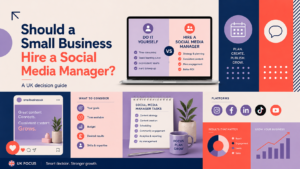
Ask for palette alternatives, accessible typography rules, labelled templates and an alt-text strategy. If you are deciding between hiring or contracting, our should a small business hire a social media manager? a uk decision guide explains the trade-offs. For accessible landing pages and extended image descriptions consider a WordPress update — see our WordPress web design services. Budget planning can use our how much does social media management cost for a small business in the uk? and the pricing models article linked above.
Summary checklist and next steps
7-day action plan for making social graphics more accessible
- Day 1: Run contrast checks on your primary palette and note failing combinations.
- Day 2: Add alt-text discipline — write alt text for five recent posts using the templates above.
- Day 3: Turn on and test captions on one video; edit for accuracy.
- Day 4: Create a labelled template with accessible headline and logo placement.
- Day 5: Do a screen-reader test of a recent post (NVDA or VoiceOver).
- Day 6: Train the person who publishes to use the checklist and template.
- Day 7: Review results and decide whether to brief an agency for a template set or palette rework.
Links to resources and services to help you start
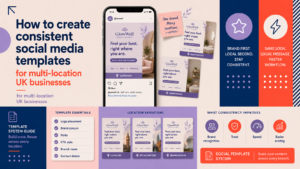
If you decide to commission accessible creative work or a new brand system, our custom logo design and brand identity design services can help. For multi-location template workflows see how to create consistent social media templates for multi-location UK businesses. When you are ready to explore content pricing, consult social media content design pricing models UK for options and next steps.
FAQ
Do UK businesses legally have to make social media graphics accessible?
There is no single explicit rule forcing every social post to meet technical standards, but the Equality Act 2010 expects reasonable adjustments to avoid discrimination. For specific legal obligations consult a qualified adviser.
How long should alt text be for social media images?
Keep alt text concise where possible (one or two short sentences). For complex images use a short alt text and provide a longer description in the caption or linked page.
What is the minimum contrast ratio I should aim for in social graphics?
Aim for recommended contrast ratios (checkers will report these). For typical body text the accepted recommendation is higher than very low contrast; confirm the current WCAG guidance for exact numeric ratios before a redesign.
Can I keep my brand colours if they fail accessibility checks?
Often you can keep brand colours but add accessible alternatives (eg a higher-contrast text colour or background option) for social use.
What’s the simplest way for a small business to add captions to social videos?
Use the platform’s native captioning tools and edit the automatic captions for accuracy, or upload an SRT file when the platform supports it.
If you would like help making your social graphics accessible, Request a free consultation with Logo Metic and we can review your templates, advise on palette adjustments and build labelled, accessible templates for your team.